Switch your Mac’s sound in one keystroke.
Switchboard lives in the menu bar and changes where your Mac’s sound comes out, and where it goes in. AirPods to speakers to your desk display, without opening System Settings.
One keystroke away
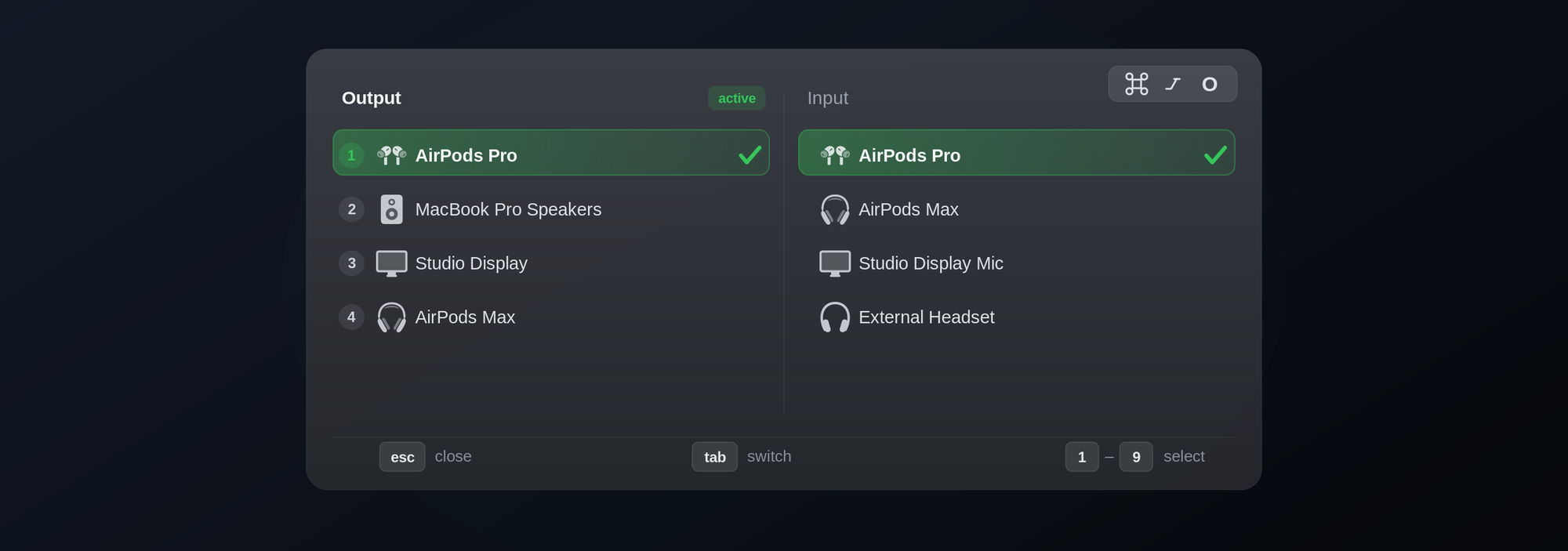
Press ⌘⌥O anywhere. The overlay lists your outputs and inputs side by side, so you never reach for the mouse.
| KEY | WHAT IT DOES |
|---|---|
⌘⌥O | Opens the picker from any app |
Tab | Moves between Output and Input |
1 to 9 | Picks that device |
esc | Closes the picker |
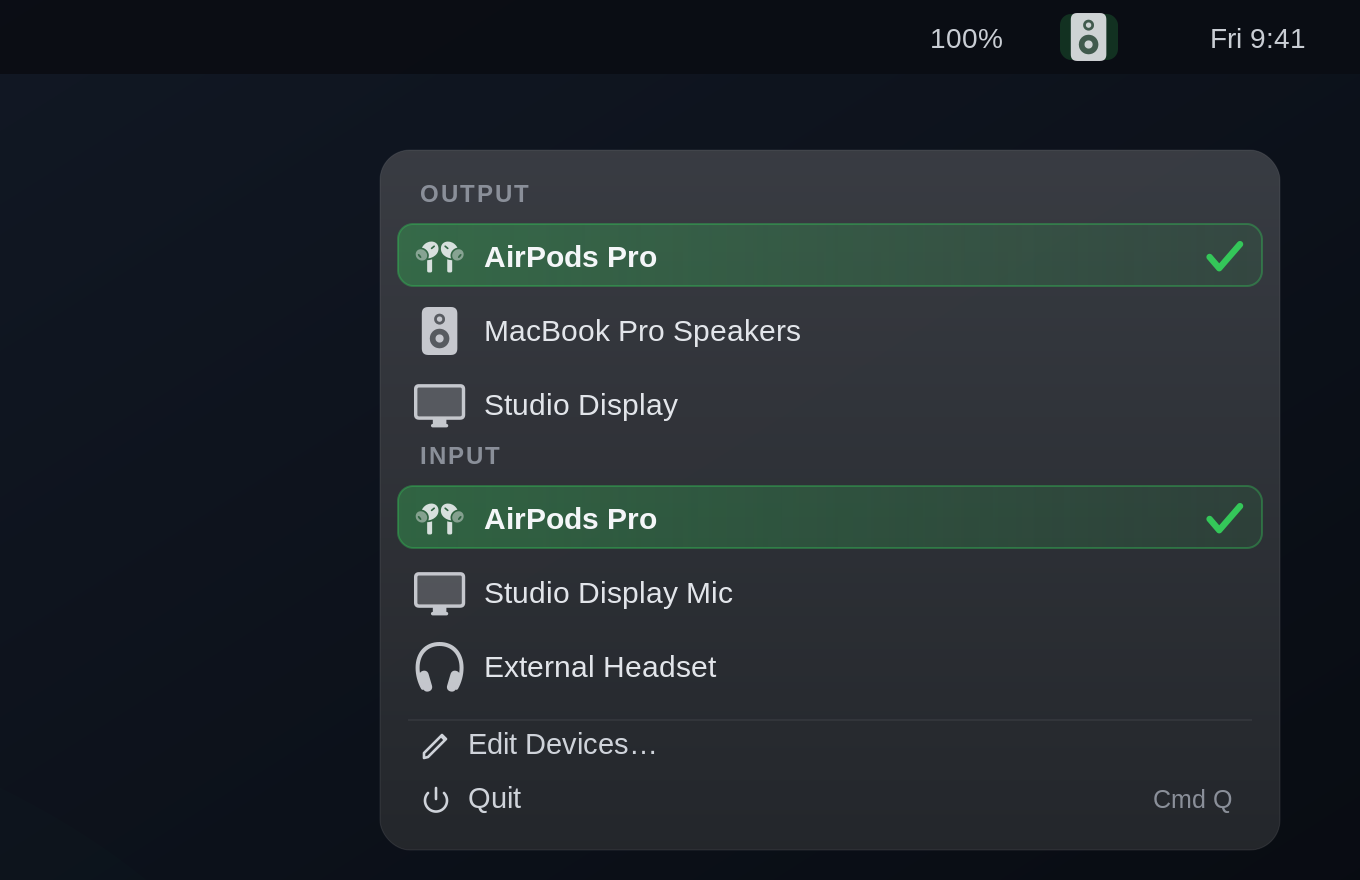
Or one click from the menu bar.
Output and input sit together in one dropdown. There’s no Dock icon and nothing else running in your way.
It knows your gear.
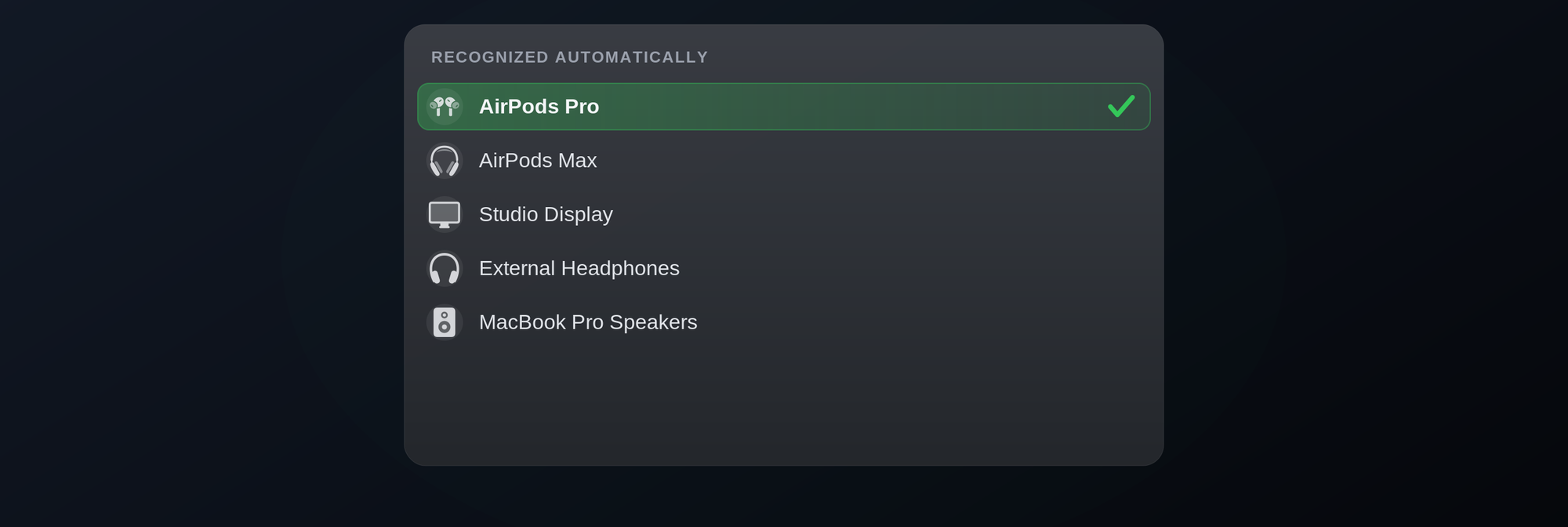
AirPods, AirPods Pro and Max, Beats and HomePod each get their own icon. Everything else falls back to a sensible one for built-in, Bluetooth, USB, HDMI, DisplayPort, Thunderbolt, AirPlay and aggregate devices.
Make it yours.
Rename any device, pick your own symbol for it, and hide the outputs you never use.
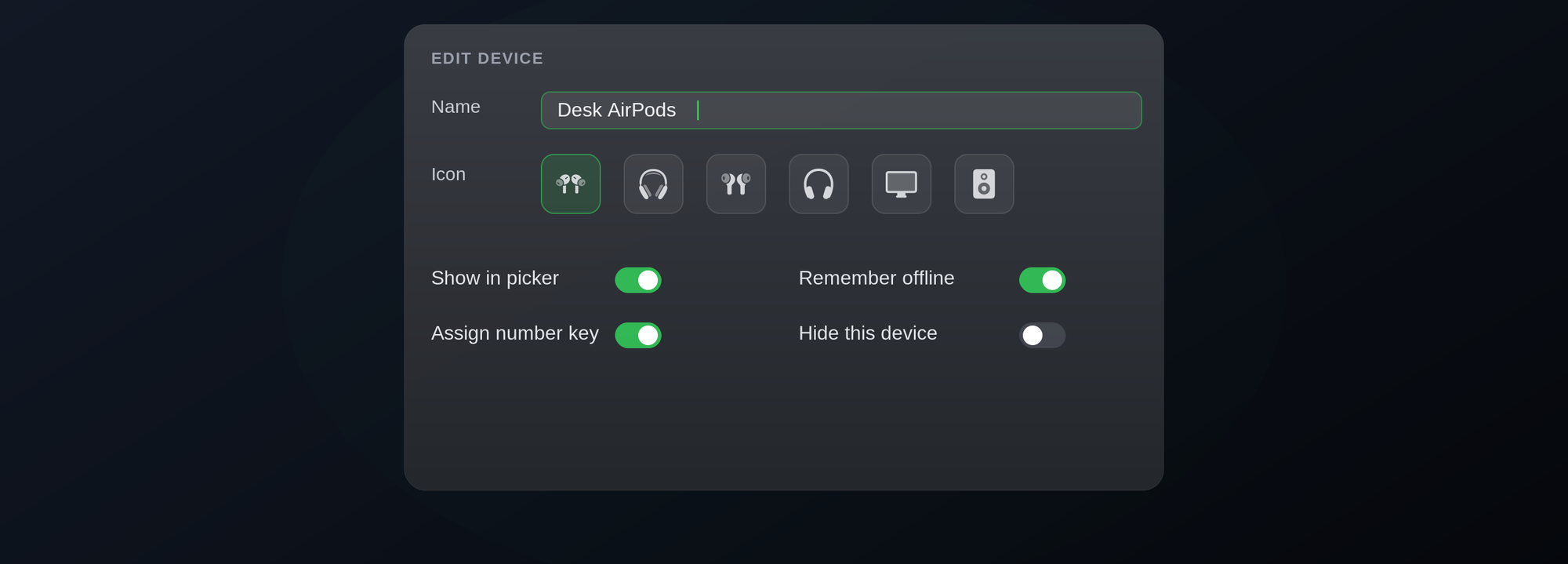
Your names
Call the desk speakers whatever you call them.
Number keys
Give keys only to the devices you want in the picker.
Remembers offline
Settings stay with a device while it’s unplugged, so reconnecting just works.
Questions
Does it switch inputs too?
Yes. Microphones and headsets show up under Input in both the menu bar dropdown and the hotkey overlay.
Does it put an icon in the Dock?
No. Switchboard runs as a menu bar accessory only.
What happens when I unplug a device?
Its name, icon and visibility are remembered, so it comes back the way you left it.
How does it update?
It checks factorial.one once a day and offers a new version when there is one. Check for Updates in the menu bar window checks straight away.
Found a bug?
Tell me what happened and I’ll look into it. Your Switchboard version and system version help a lot. You’ll find the app version in its About or Settings window.
Made by Vinny
I’m a controls and safety engineer in Sydney. Outside work I build small, native apps for Mac and iPhone in SwiftUI, and put them up here.
Switchboard is made by one person, so there’s no support team. If it’s earned a place on your Mac, a tip keeps it going.
Get Switchboard
Open the DMG, drag Switchboard to Applications and launch it. Look for the speaker in your menu bar, or press ⌘⌥O.